Questions about turning off the MacBook screen
How do I use only my external monitor on a MacBook?
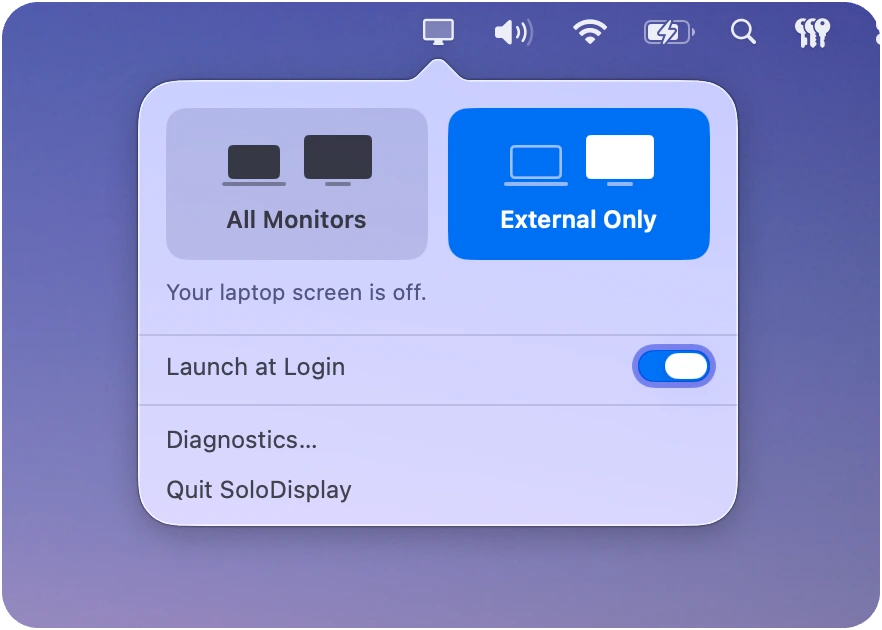
Install SoloDisplay, open it from the menu bar and choose External Only. From then on the MacBook screen turns off whenever a monitor is connected, and comes back when you unplug. The guide compares this with clamshell mode and the other workarounds.
Can I use clamshell mode with the lid open?
Not with macOS alone. Clamshell mode only works with the lid closed, so you lose the keyboard, trackpad, Touch ID, camera and microphone. SoloDisplay gives you the same monitor-only setup with the lid open.
Is there a "Second screen only" mode on Mac like on Windows?
Not built in. On Windows you press Win+P and pick Second screen only. macOS has no such setting. SoloDisplay adds it: External Only is the same idea.
Why not just turn the brightness all the way down?
A dimmed screen is still part of your desktop. The pointer and windows keep ending up on a screen you can't see. SoloDisplay turns it off, so macOS only uses your monitor.
Why do my windows and pointer keep ending up on the laptop screen?
Because macOS still treats the built-in display as part of your desktop, even when it's dimmed. Once SoloDisplay turns it off, macOS only has your monitor, so everything opens there.
What happens when I unplug the monitor?
The laptop screen turns back on. If External Only is still chosen, it turns off again the next time you plug a monitor in.
Does it work with docks, hubs and more than one monitor?
Yes. Monitors connected directly, through a USB-C or Thunderbolt hub, or through a dock all count, and you can have more than one.
Can I control my external monitor's brightness?
Yes. Turn on Brightness Keys and the Mac's brightness keys control the external monitor, on monitors that support DDC. It needs Accessibility permission.
What happens if I switch my monitor to another input?
With Input Detection (Experimental) turned on, SoloDisplay notices when the monitor is showing another device, like a PS5 or a PC. It turns that monitor off in macOS and brings the laptop screen back, while the cable stays connected. It needs a monitor that reports its input over DDC.
What if the app crashes?
A small helper process watches the app while the screen is off. If the app quits, crashes or is force quit, the helper turns the laptop screen back on. It does the same if the screen is off and no usable monitor is connected.
Does it change my resolution or display arrangement?
No. It doesn't touch mirroring, resolution, arrangement or sleep settings.
Which Macs does it work on?
MacBook Air and MacBook Pro with Apple silicon (M1 and later), running macOS Tahoe 26 or later. Intel Macs aren't supported.
Is SoloDisplay an alternative to BetterDisplay?
For this one job, yes. BetterDisplay is a large toolkit for managing displays. SoloDisplay only turns the laptop screen off when a monitor is connected, and it's free and open source.
How do I uninstall it?
Quit SoloDisplay from its menu and drag it from Applications to the Trash, or run brew uninstall --cask solodisplay if you installed it with Homebrew. The laptop screen comes back on when the app quits.
Is it free?
Yes. SoloDisplay is open source under the GPL-3.0 license. The code is on GitHub.
 SoloDisplay